ClickUp Review (2026)
Is It the Best Project Management Software for Your Business?

ClickUp is one of those business software platforms that seems to do almost everything.
Tasks. Projects. Docs. Goals. Whiteboards. Dashboards. Automations. Time tracking. AI. Forms. Reporting.
That sounds impressive.
It can also make ClickUp feel overwhelming when you first open it.
The real question isn't whether ClickUp has enough features.
It clearly does.
The better question is:
Does ClickUp make managing your work easier, or does all that flexibility create more complexity than you need?
I've spent time looking at ClickUp from the perspective of someone who actually needs to use project management software not just someone comparing feature lists.
In this ClickUp review, I'll break down the pricing, main features, ease of use, project management workflow, AI tools, automations, dashboards, pros and cons, and the situations where I'd actually recommend ClickUp.
I'll also show you who should probably choose something simpler.
ClickUp Review: Quick Verdict
Overall Rating: ★★★★★ 4.7/5
ClickUp is one of the most capable project management platforms available, particularly for businesses that want to bring tasks, projects, documentation, communication, and reporting into one workspace.
Its biggest strength is flexibility.
You can build ClickUp around the way your business works instead of forcing your business into a rigid workflow.
Its biggest weakness is the same thing.
There are so many options that beginners can easily overcomplicate their workspace.
My Ratings
Category | Rating |
|---|---|
Task Management | ★★★★★ 4.9/5 |
Project Management | ★★★★★ 4.8/5 |
Ease of Use | ★★★★☆ 4.3/5 |
Automation | ★★★★★ 4.8/5 |
AI Features | ★★★★★ 4.7/5 |
Collaboration | ★★★★★ 4.7/5 |
Dashboards | ★★★★★ 4.8/5 |
Documentation | ★★★★★ 4.7/5 |
Integrations | ★★★★★ 4.7/5 |
Value for Money | ★★★★★ 4.7/5 |
Overall | ★★★★★ 4.7/5 |
What Is ClickUp?
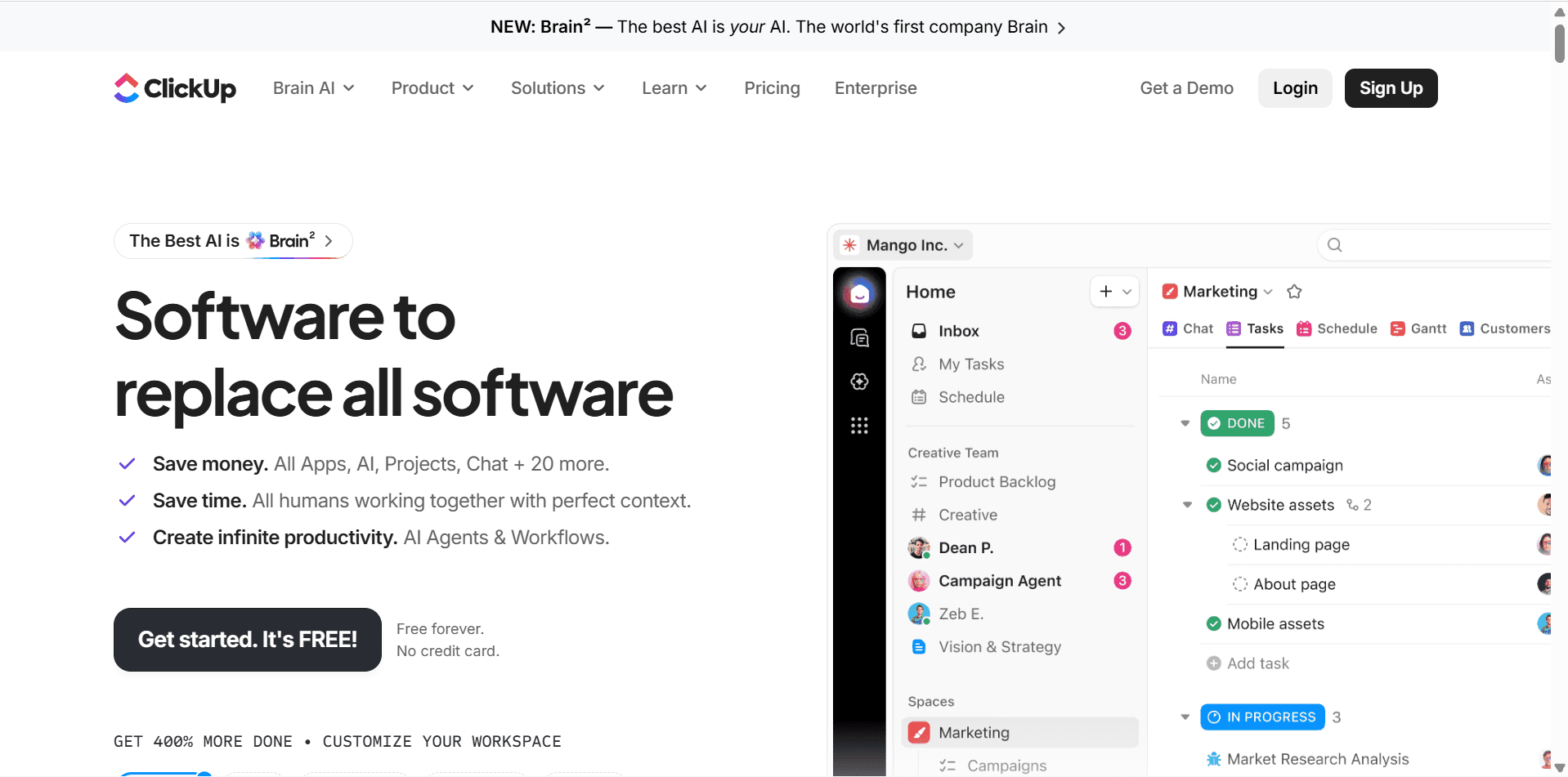
ClickUp is a project management and productivity platform designed to help individuals and teams organize their work.
At its simplest, you can use ClickUp to create tasks, assign them to people, add deadlines, and track whether they're complete.
But that's only the beginning.
ClickUp can also be used for:
Project management
Task management
Team collaboration
Content planning
Marketing campaigns
Client management
Product development
Documentation
Time tracking
Automations
Reporting
Goal tracking
AI-assisted work
For example, a marketing team could use ClickUp to manage an entire campaign.
Campaign
↓
Content planning
↓
Blog article
↓
YouTube video
↓
Social media posts
↓
Email newsletter
↓
Performance reporting
Everything can live inside the same workspace.
That's the main appeal of ClickUp.
Who Is ClickUp Best For?
ClickUp makes the most sense for businesses that have enough work to justify a structured project management system.
I'd consider it particularly useful for:
Small businesses
Startups
Marketing agencies
Freelancers
Remote teams
Software companies
Content teams
Ecommerce businesses
Consultants
Project-based businesses
It's also useful for individuals who simply want a more sophisticated task management system.
However, I wouldn't automatically recommend ClickUp to everyone.
If you have ten simple tasks and work alone, ClickUp may be more software than you need.
A simple task manager could be enough.
ClickUp becomes more valuable when you have multiple projects, recurring processes, deadlines, collaborators, or a growing amount of information to organize.
ClickUp Pricing
Pricing is one of the most important things to understand before choosing ClickUp.
ClickUp offers several plans, including a free option and paid plans designed for businesses that need more functionality.
Based on the current pricing information provided for this review, the main plans are:
Plan | Price | Best For |
|---|---|---|
Free | $0 | Individuals and small teams getting started |
Basic | $7/user/month | Small teams needing more capacity |
Standard | $12/user/month | Teams needing automations and integrations |
Enterprise | Custom | Larger organizations |
The paid prices above are based on annual billing.
Free — $0
The free plan is designed for getting started with ClickUp.
It includes features such as:
Up to 2 seats
Up to 3 boards
Up to 3 Docs
200+ templates
8 column types
iOS and Android apps
Access to selected AI capabilities
It's a useful way to test ClickUp before committing to a paid plan.
Basic — $7/user/month
The Basic plan adds more capacity and features.
It includes everything in Free, plus:
Unlimited free viewers
Unlimited items
AI features
Additional workspace capabilities
This is where ClickUp starts becoming more practical for a small team that has outgrown the free plan.
Standard — $12/user/month
The Standard plan adds several features that can make a significant difference to a growing team.
These include:
Automations
Integrations
Timeline and Gantt views
Calendar view
Guest access
API calls
For many small businesses, this is likely to be the point where ClickUp becomes a much more complete project management system.
Enterprise — Custom Pricing
Larger organizations can contact ClickUp for customized Enterprise pricing.
Enterprise plans are designed around larger-scale business requirements and can include additional administrative, security, and support capabilities.
Which ClickUp Plan Would I Choose?
If I were just testing ClickUp, I'd start with the Free plan.
There's no reason to pay before you know whether the platform fits your workflow.
If I were running a small business with a few people and needed more capacity, I'd look at Basic or Standard.
For a growing team that relies heavily on automations, integrations, Gantt views, and more advanced project management, I'd consider Standard or Pro.
I wouldn't jump straight to Pro simply because it has more features.
The best plan is the lowest one that gives you the features your workflow actually requires.
ClickUp Task Management
Rating: ★★★★★ 4.9/5
Task management is where ClickUp is particularly strong.
A task can contain much more than a title.
You can add:
Assignees
Due dates
Priorities
Descriptions
Subtasks
Checklists
Comments
Attachments
Custom fields
Dependencies
Time estimates
Time tracking
For example, imagine you're publishing a software review.
Instead of creating one task called:
Publish ClickUp Review
You could break it down.
ClickUp Review
Research pricing
Test task management
Test automations
Test dashboards
Write article
Create screenshots
Record YouTube video
Edit video
Publish article
Add internal links
Promote article
Now you have a complete workflow instead of one vague task.
That's where ClickUp starts becoming genuinely useful.
ClickUp's Task Hierarchy
One feature beginners should understand early is ClickUp's hierarchy.
The basic structure looks like:
Workspace
↓
Space
↓
Folder
↓
List
↓
Task
↓
Subtask
Think of it as a filing system.
Your workspace contains your business.
Spaces can represent departments.
Folders can group related projects.
Lists can organize specific types of work.
Tasks represent individual pieces of work.
Subtasks break those tasks down further.
For example:
Workspace: My Business
↓
Space: Marketing
↓
Folder: Content Marketing
↓
List: Software Reviews
↓
Task: ClickUp Review
↓
Subtasks: Research, Writing, Editing, Publishing
Once you understand this structure, ClickUp becomes much easier to organize.
ClickUp Views
Rating: ★★★★★ 4.8/5
One of ClickUp's biggest advantages is that the same work can be viewed in different ways.
For example, you could view your tasks as:
List
Board
Calendar
Gantt
Timeline
Table
This matters because different types of work are easier to understand in different formats.
List View
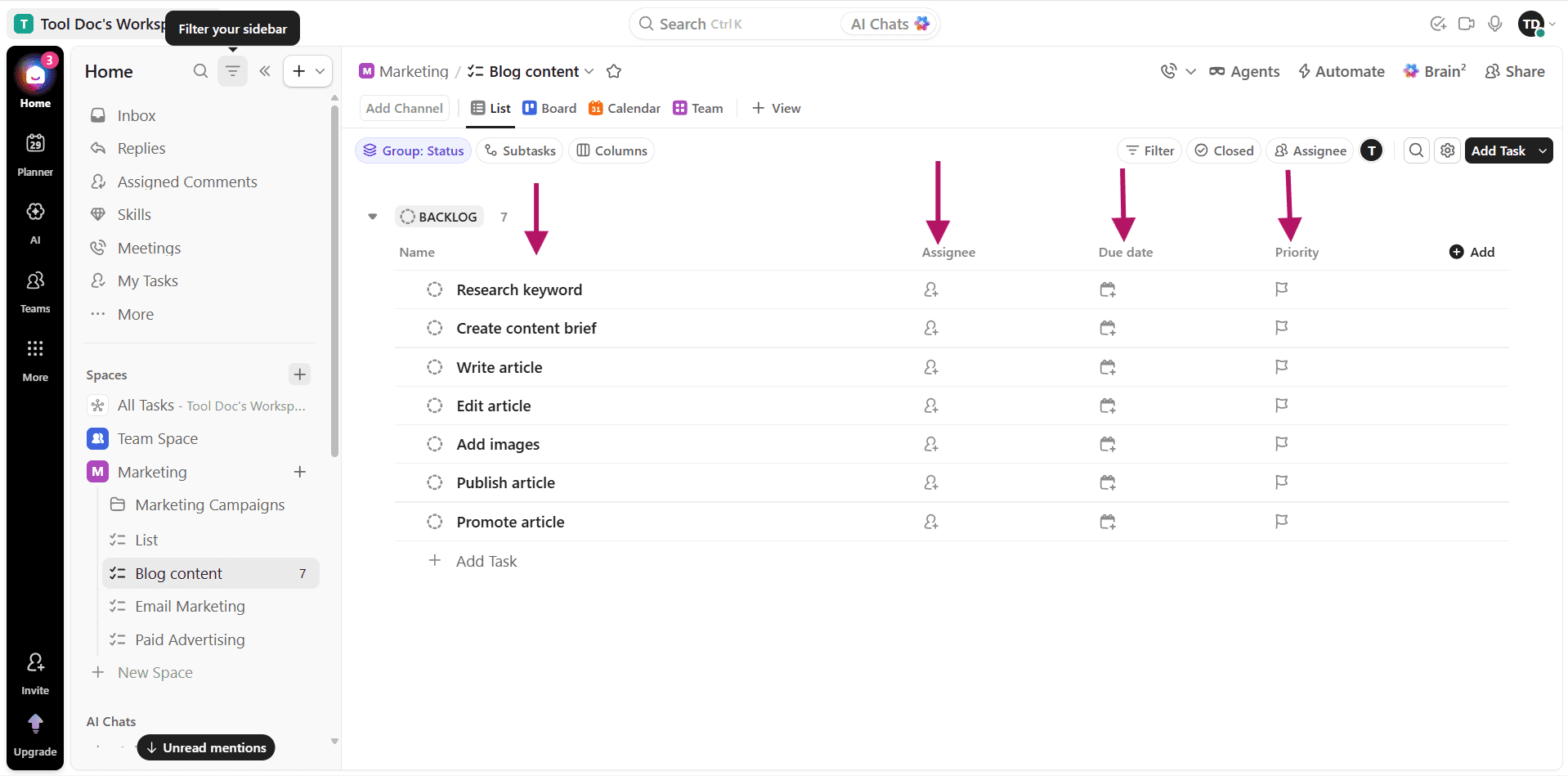
Best for traditional task management.
You can see:
Task | Assignee | Priority | Due Date | Status
This is probably where I'd recommend beginners start.
Board View
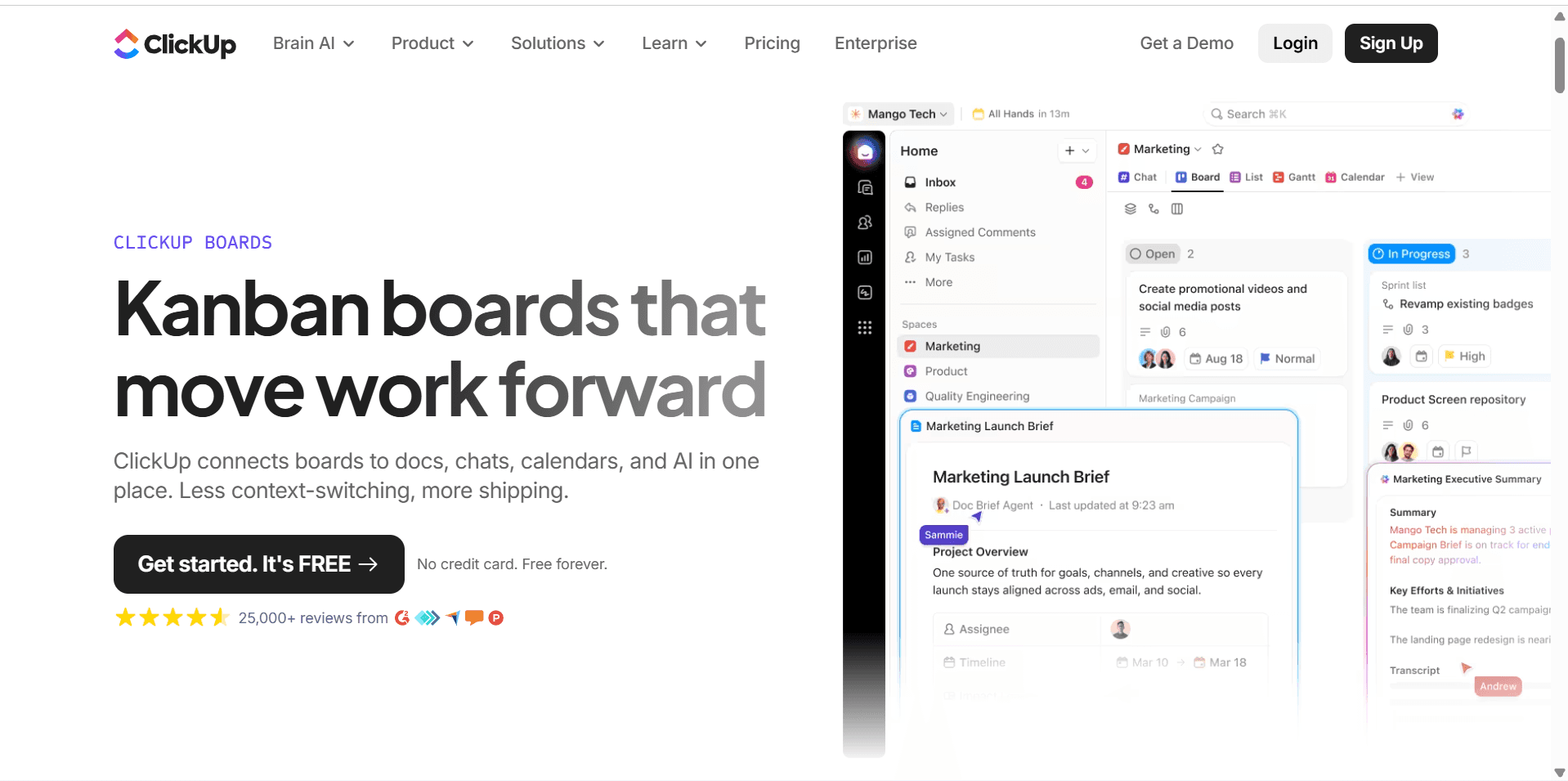
Board view is useful when work moves through stages.
For example:
Ideas → Writing → Editing → Published
This is particularly useful for content teams.
Calendar View
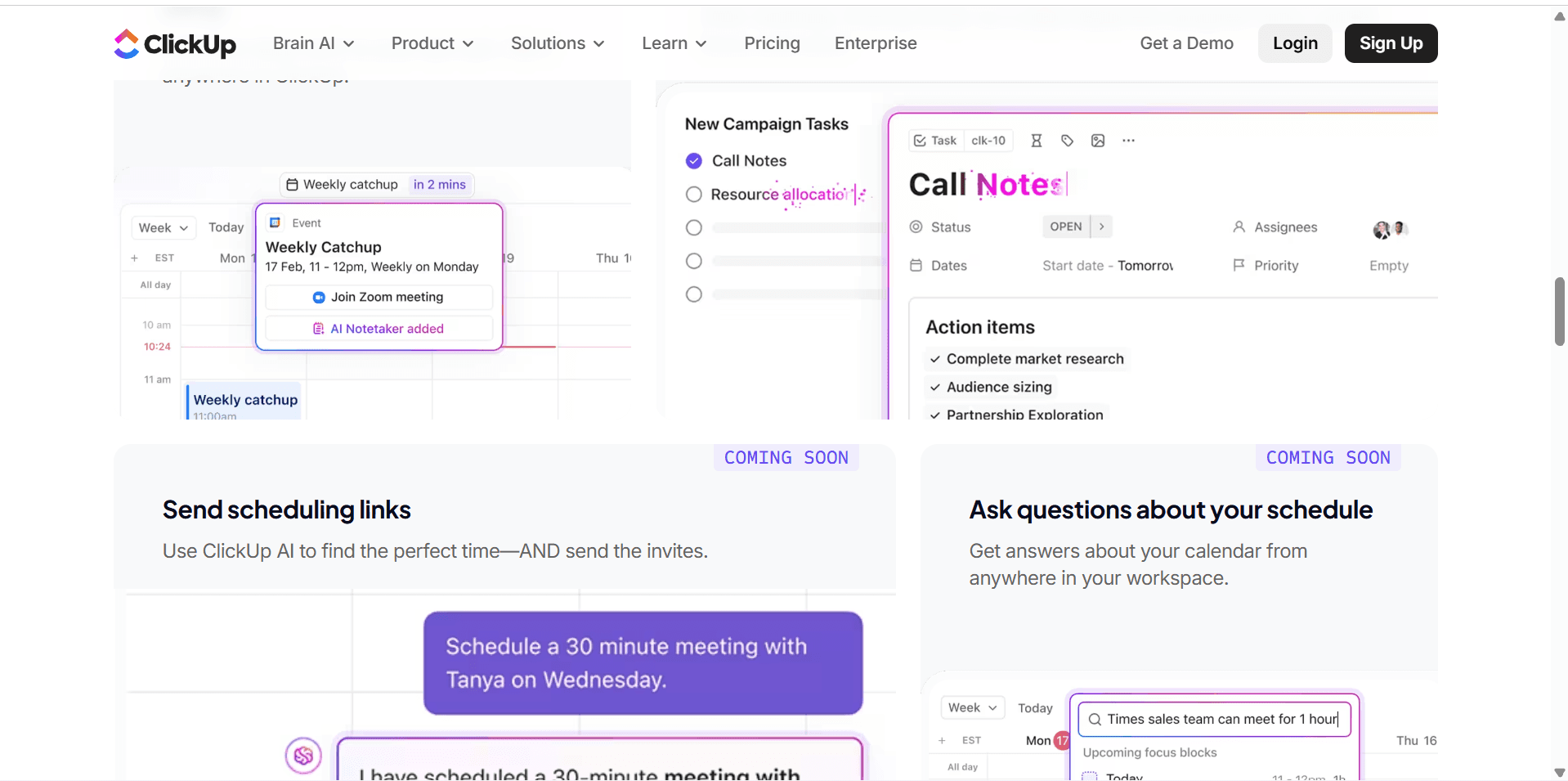
Calendar view helps you see deadlines and scheduled work.
For a content business, you could use it as a publishing calendar.
Gantt View
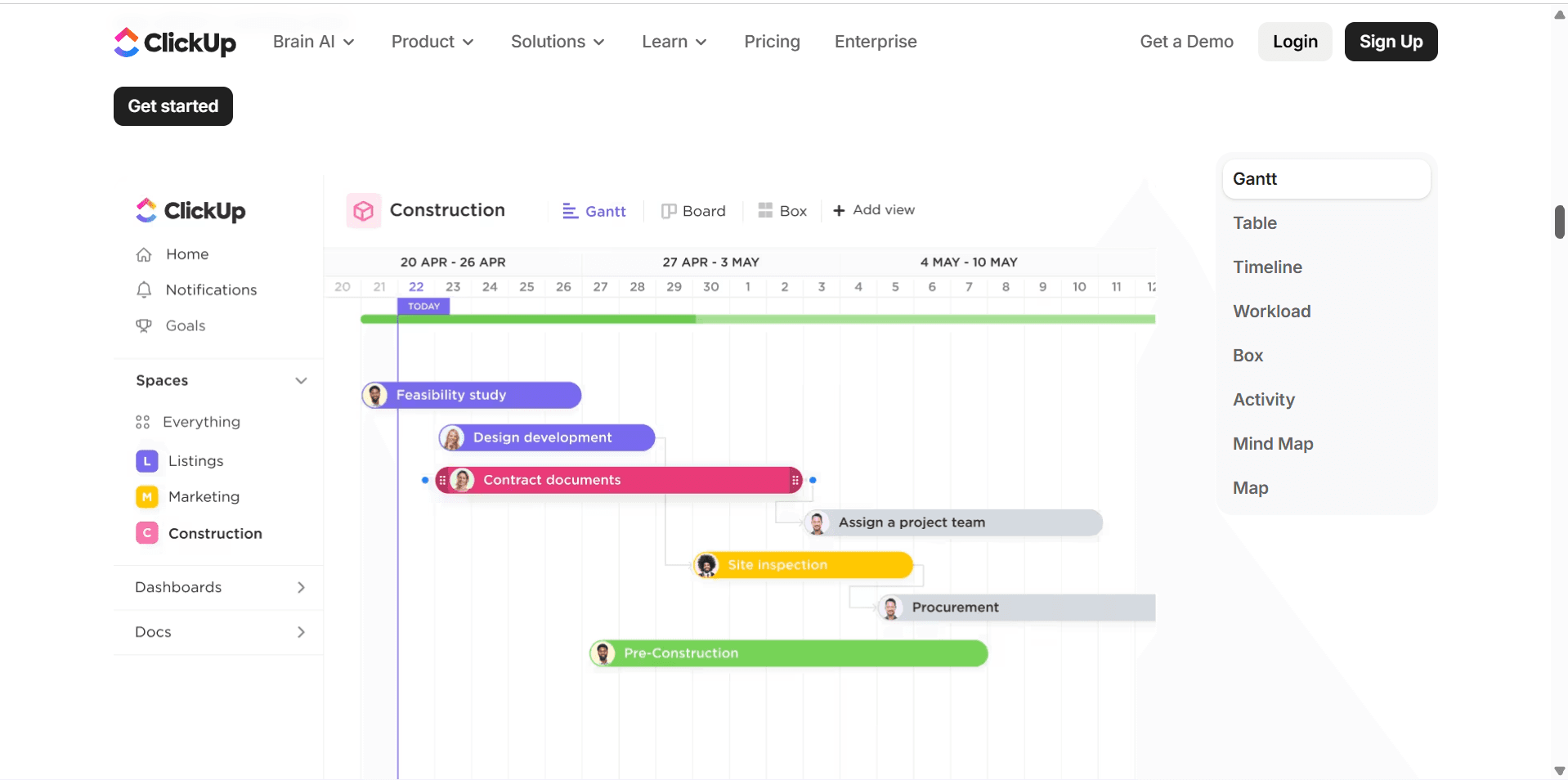
Gantt charts are useful for projects where tasks depend on one another.
For example:
Research
↓
Writing
↓
Editing
↓
Publishing
If research is delayed, the rest of the project may need to move.
A Gantt view makes those relationships easier to understand.
ClickUp Automations
Rating: ★★★★★ 4.8/5
Automation is another area where ClickUp becomes much more powerful.
Instead of manually performing repetitive actions, you can create rules.
For example:
When status changes to "Ready for Review"
↓
Assign task to Editor
Or:
When task is marked Complete
↓
Move it to Published
Or:
When priority becomes Urgent
↓
Notify project manager
These simple automations can remove a surprising amount of repetitive work.
The important thing is not to automate everything.
Start with tasks your team performs repeatedly.
If you're manually doing the same action every day, that's a good candidate for automation.
ClickUp AI
Rating: ★★★★★ 4.7/5
ClickUp has increasingly integrated AI into its platform.
Depending on your plan and available features, AI can assist with tasks such as:
Writing
Summarizing
Generating ideas
Creating content
Searching information
Automating certain workflows
Meeting notes
AI-assisted project work
The important distinction is that ClickUp's AI is built into your project management environment.
For example, instead of copying a project description into a separate AI tool and asking it to summarize the information, you can use AI within the workspace where the work already exists.
That can save time.
However, I wouldn't buy ClickUp simply because it has AI.
AI features are becoming standard across business software.
The real value of ClickUp remains its project management system.
ClickUp Docs
Rating: ★★★★★ 4.7/5
ClickUp isn't only a task manager.
You can also create Docs inside the workspace.
This is useful for storing information related to your projects.
For example, you could create a company documentation area containing:
Standard operating procedures
Content guidelines
Brand guidelines
Meeting notes
Project documentation
Research
Training materials
This reduces the need to keep project documentation in one application and tasks in another.
For a growing team, that can make a real difference.
ClickUp Dashboards
Rating: ★★★★★ 4.8/5
Dashboards give you a way to turn project information into a visual overview.
For example, a manager could create a dashboard showing:
Tasks completed
Overdue tasks
Work by team member
Project progress
Time tracked
Upcoming deadlines
Instead of opening dozens of individual projects, you can get a high-level view of what's happening.
This is particularly useful for managers.
For an individual freelancer, however, dashboards may be less important.
Again, don't use a feature just because ClickUp gives you the option.
Use it because it solves a problem.
ClickUp Pros and Cons
ClickUp Pros
★★★★★ Highly Flexible
You can build ClickUp around many different workflows.
★★★★★ Excellent Task Management
Tasks, subtasks, dependencies, custom fields, priorities, and deadlines provide a lot of control.
★★★★★ Powerful Automation
Automations can remove repetitive administrative work.
★★★★★ Strong Collaboration
Comments, Docs, tasks, and shared workspaces make team collaboration easier.
★★★★★ Excellent Free Plan
The free plan provides a useful way to test the platform before paying.
★★★★★ AI Features
AI can assist with writing, summaries, meetings, and other workflows.
★★★★★ Multiple Views
List, Board, Calendar, Timeline, and Gantt views allow teams to work in different ways.
ClickUp Cons
★★★★☆ Can Feel Overwhelming
The sheer number of features can intimidate beginners.
★★★★☆ Requires Setup
ClickUp works best when you spend some time designing your workspace properly.
★★★★☆ Easy to Overcomplicate
It's possible to create a workspace with too many Spaces, Folders, Lists, statuses, and custom fields.
★★★★☆ Some Advanced Features Require Paid Plans
The free version is useful, but serious teams may need to upgrade.
★★★★☆ Learning Curve
You can learn the basics quickly, but mastering ClickUp takes longer.
Is ClickUp Easy to Use?
Rating: ★★★★☆ 4.3/5
This is probably the biggest criticism I would make of ClickUp.
It's not difficult because the individual features are necessarily complicated.
It's difficult because there are so many of them.
A beginner can open ClickUp and immediately start wondering:
Should I create a Space?
A Folder?
A List?
Should I use Board view?
What about Gantt?
Do I need Custom Fields?
Should I create an automation?
What exactly belongs in a Doc?
That's where ClickUp's flexibility can become a disadvantage.
My advice is to start extremely simple.
Create:
One Space
↓
One Folder
↓
One List
↓
Your Tasks
Use that system for a week or two.
Only add complexity when you actually need it.
How I Would Set Up ClickUp
If I were starting a new business workspace today, I wouldn't create ten Spaces immediately.
I'd start with something like:
Workspace
My Business
Space
Operations
Lists
Tasks
Projects
Recurring Work
Then I'd create additional Spaces only when the business actually needs them.
For a content business, I might eventually create:
Content
Marketing
Operations
Business Development
But I wouldn't build the entire organizational structure on day one.
Your ClickUp workspace should evolve with your business.
Who Should NOT Use ClickUp?
ClickUp is powerful, but that doesn't mean it's the best option for everyone.
I wouldn't recommend it if:
You only manage a handful of simple tasks.
You work alone and don't need project tracking.
You dislike customizable software.
You want an extremely minimal interface.
You don't want to spend time configuring your workspace.
If your needs are simple, a simpler tool may actually make you more productive.
Software should reduce friction.
It shouldn't create another project for you to manage.
Who Should Use ClickUp?
I'd seriously consider ClickUp if:
You manage multiple projects.
You work with a team.
You need task dependencies.
You want automated workflows.
You need detailed project reporting.
You want documentation alongside tasks.
You manage recurring business processes.
You need different project views.
You want one central workspace for your team's work.
For those use cases, ClickUp's flexibility becomes an advantage rather than a problem.
ClickUp vs Monday.com
If you're comparing ClickUp with Monday.com, the decision isn't quite as simple as choosing whichever has more features.
ClickUp generally gives you a very broad collection of project management and productivity capabilities.
Monday.com tends to emphasize a visually intuitive work management experience.
I'd lean toward ClickUp if you want:
More customization
Detailed task management
Extensive project features
Advanced workflows
A broader productivity platform
I'd consider Monday.com if you prioritize:
Visual project management
Simpler onboarding
Highly visual boards
Easy team adoption
If you're interested in the detailed comparison, see:
ClickUp vs Monday.com: Which Project Management Tool Is Better?
ClickUp vs Notion
ClickUp and Notion overlap, but they're built around different strengths.
Notion is particularly strong for:
Documentation
Knowledge management
Databases
Flexible workspaces
Notes
ClickUp is particularly strong for:
Tasks
Projects
Workflows
Dependencies
Automations
Project reporting
If your business revolves around project execution, I'd lean toward ClickUp.
If your business revolves around documentation and knowledge management, Notion may be the better fit.
Is ClickUp Worth It in 2026?
Yes—but only if you actually need what it offers.
That's my honest answer.
ClickUp is not valuable because it has hundreds of features.
It's valuable because those features can work together to create a complete business workflow.
Imagine this:
A new project is created.
↓
Tasks are automatically generated.
↓
Team members are assigned.
↓
Deadlines are added.
↓
Everyone works from the same workspace.
↓
Completed work triggers the next stage.
↓
Managers monitor progress through a dashboard.
↓
Documentation remains attached to the project.
That is where ClickUp starts to become much more than a task manager.
But if you only need a basic to-do list, you don't need all of that.
Final Verdict
Is ClickUp the Best Project Management Software?
For many businesses, ClickUp is one of the best options available in 2026.
But I wouldn't call it the best for everyone.
Its biggest advantage is flexibility.
You can use ClickUp for a simple personal task list today and eventually build a sophisticated project management system around it as your business grows.
The trade-off is complexity.
You have to resist the temptation to use every feature.
If you keep your workspace simple and add functionality only when you need it, ClickUp can become an extremely powerful operating system for your business.
My Final Rating
ClickUp: ★★★★★ 4.7/5
Best For: Businesses and teams that need flexible project management
Best Feature: Task and workflow management
Best for Beginners: ★★★★☆
Best for Growing Teams: ★★★★★
Best for Complex Projects: ★★★★★
Best for Simple To-Do Lists: ★★★☆☆
Value for Money: ★★★★★
My Recommendation
If you're managing multiple projects, working with a team, or trying to build repeatable business processes, I'd definitely put ClickUp on your shortlist.
If you're looking for the simplest possible task manager, I'd look elsewhere.
The goal isn't to find the software with the most features.
It's to find the software that makes your work easier.
And when ClickUp is configured properly, it can do exactly that.
Frequently Asked Questions
What is ClickUp mainly used for?
ClickUp is mainly used for project management, task management, team collaboration, workflow automation, documentation, and business productivity.
Is ClickUp free?
Yes. ClickUp offers a free plan with limitations. Paid plans provide additional capacity and advanced features.
How much does ClickUp cost?
Based on the current pricing information used in this review, paid plans start at $9 per user per month when billed annually, with higher tiers at $12 and $19 per user per month. Enterprise pricing is customized.
Is ClickUp good for small businesses?
Yes. Small businesses can use ClickUp to organize projects, assign tasks, manage deadlines, automate repetitive work, and keep documentation in one place.
Is ClickUp difficult to learn?
The basic features are relatively easy to learn. The bigger challenge is understanding how to organize all of ClickUp's features without creating unnecessary complexity.
Is ClickUp better than Notion?
It depends on what you're trying to accomplish. ClickUp is generally stronger for project and task management, while Notion is particularly strong for documentation, knowledge management, and flexible databases.
Is ClickUp better than Monday.com?
Neither is universally better. ClickUp generally offers more flexibility and project management depth, while Monday.com is known for its highly visual and approachable work management experience.
Does ClickUp have AI?
Yes. ClickUp offers AI-powered features across supported plans, including tools for writing, summaries, meetings, search, and workflow assistance.
Is ClickUp good for freelancers?
Yes. Freelancers can use ClickUp to manage clients, projects, deadlines, recurring work, and personal tasks.
However, freelancers with very simple workflows may prefer a lighter task management tool.
Can ClickUp replace multiple business tools?
Potentially.
ClickUp can combine tasks, project management, documentation, collaboration, dashboards, time tracking, and other workflows in one platform.
Whether it can replace your other tools depends on how your business is currently organized.


